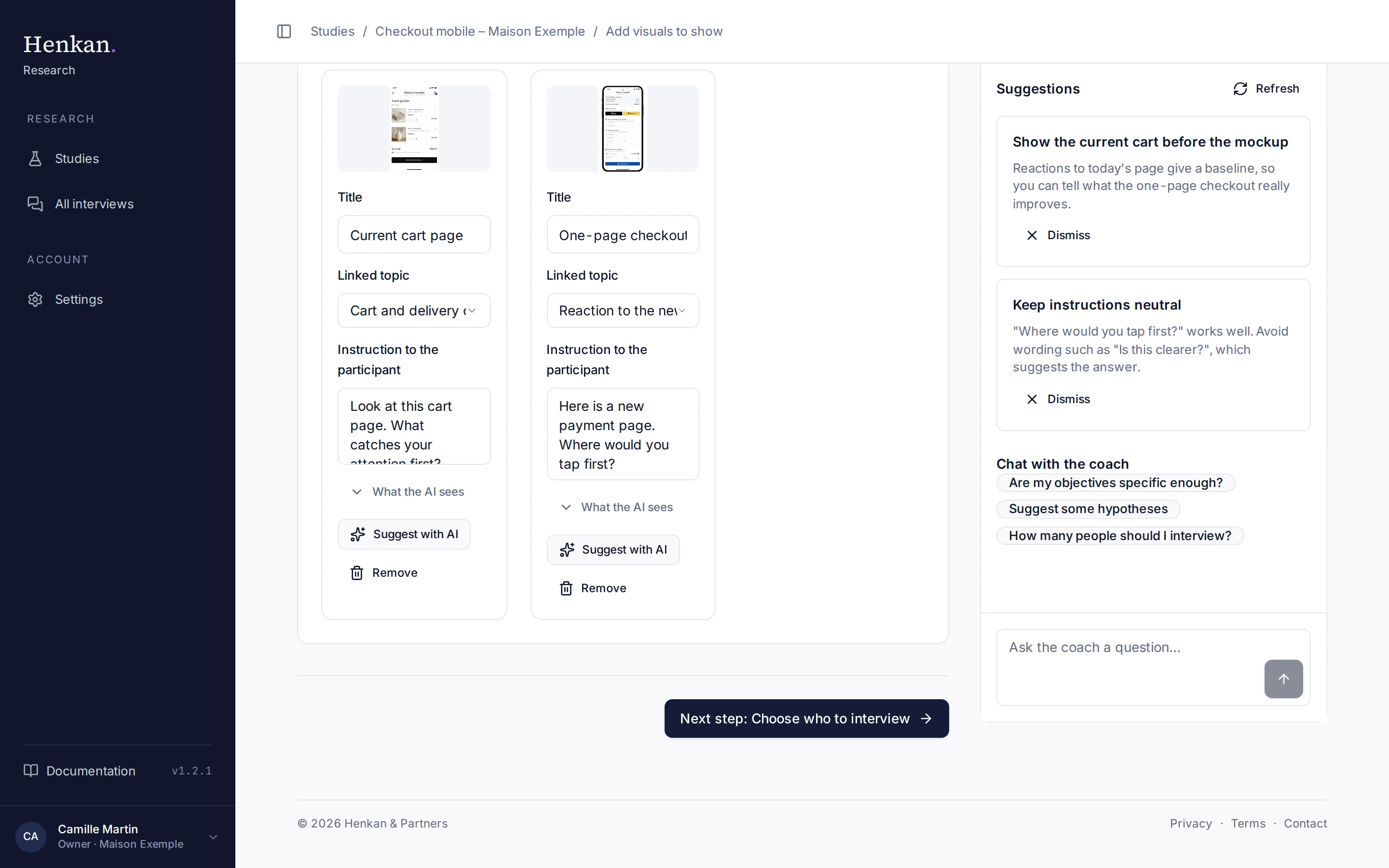
Visuals are mockups, screenshots or web pages the AI shows during the interview. When the conversation reaches the linked topic, the AI displays the visual and gives the participant your instruction.
1
Add link. Add a prototype or web page by its address. Import images, just above, adds files.
2
Linked topic. The topic during which the AI shows the visual.
3
Instruction. What the AI asks the participant when it shows the visual.
4
What the AI sees. The description the AI uses to refer to the visual.
5
Suggest with AI. Describes the visual and proposes a title, topic and instruction.
Add a visual#
- Import or link Select Import images to upload images or videos, or paste an address starting with https:// and select Add link.
- Let the AI prepare it On import, the AI describes each image and suggests a title, a linked topic and an instruction. This takes a few seconds per visual.
- Check the card Edit the Title, choose the Linked topic (or Any topic) and adjust the Instruction to the participant.
- Check what the AI sees Open What the AI sees to read the description the AI uses to refer precisely to what is on screen, especially in voice interviews.
| Field | Default | Notes |
|---|---|---|
| Title | The file name, or the site's domain for a link | Shown in transcripts and in the synthesis. |
| Linked topic | Suggested by the AI | Any topic lets the AI choose the moment. |
| Instruction to the participant | "What is your first impression?" for images, "What catches your attention?" for links | Keep it neutral, for example "Where would you tap first?". |
Imported images and videos are private: only you and each participant during their own interview can see them, through temporary links. Unreleased designs are not reachable from a public address. Web pages added with Add link are opened from their own address.
To remove a visual, select Remove on its card.
A study without visuals#
This step is optional. If you do not need reactions to a visual, select No visuals for this study: the step is marked done. Select I want to add visuals to change your mind.