Participants need nothing but the link: no account, no app. The pages use the client's logo and brand colour when you set them, and work on phones and computers.
1. Welcome#
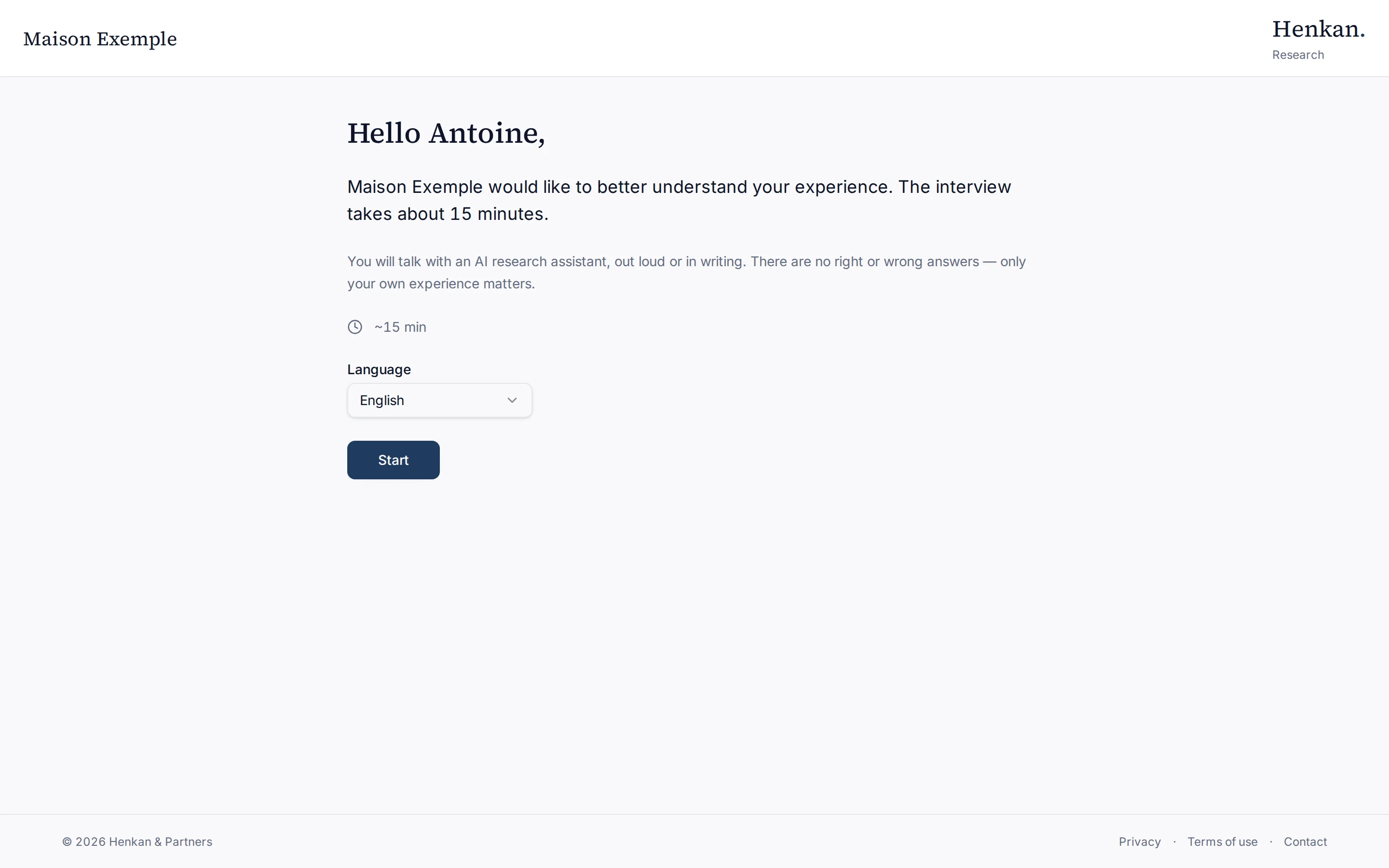
The page shows the client's name, the expected length and the language choice. The page starts in French unless the link has lang=en or the study is English only. Participants switch with Language.
If the participant started the interview in the last 24 hours, Resume interview picks it up where they left off, with the consent they gave. This works from a personal link, and from the public link when they reload the same browser tab.
2. Consent#
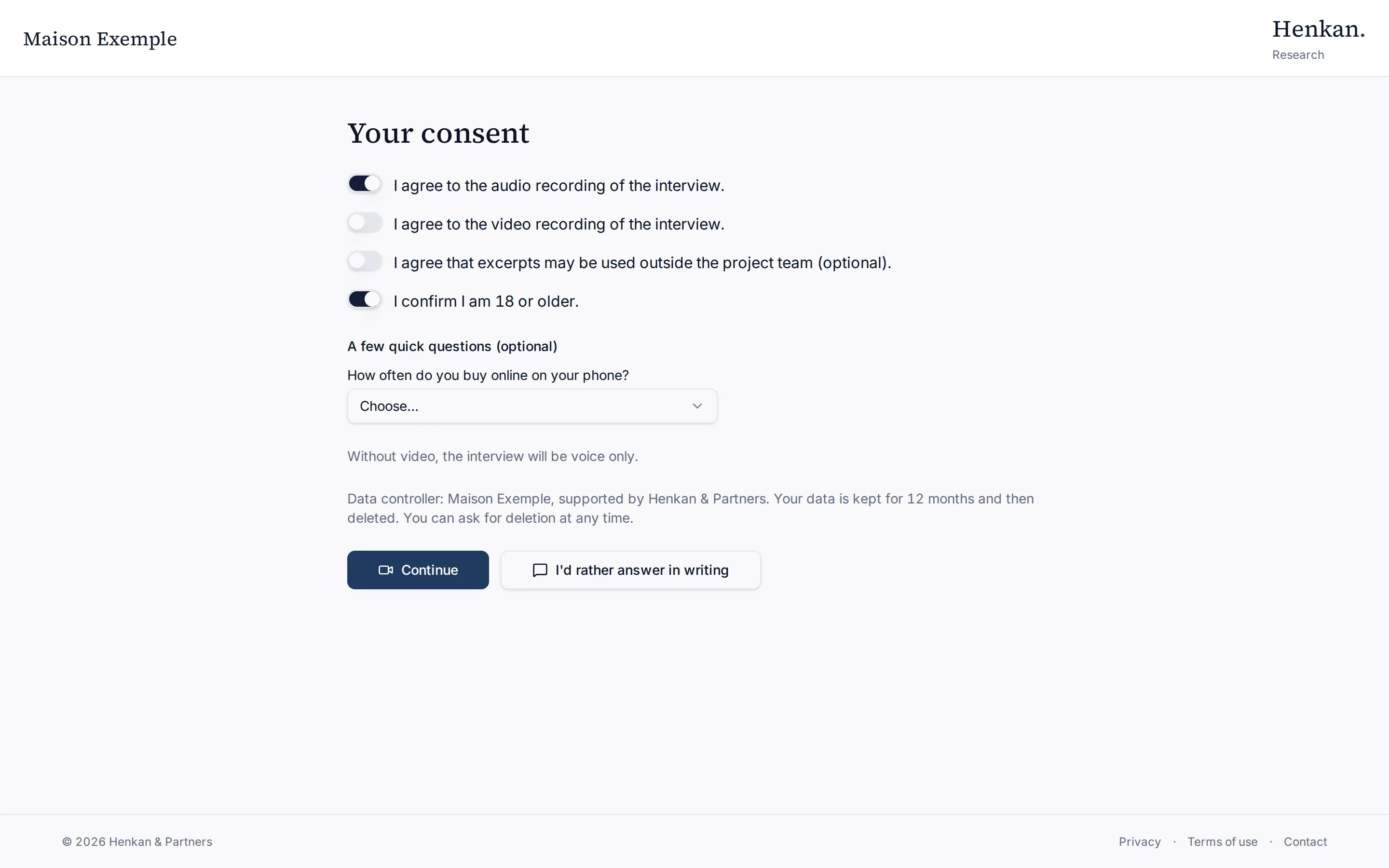
| Choice | Required | Effect |
|---|---|---|
| Audio recording | Yes, for a voice interview | Without it, only the written interview is available. |
| Video recording | No | Without video, the interview is voice only. |
| Excerpts used outside the project team | No | Recorded with the interview. |
| 18 or older | Yes | Needed for every interview. |
Below the choices, the screen names the data controller (the client, supported by Henkan & Partners) and the retention period you set, and reminds participants they can ask for deletion at any time.
3. Microphone and camera check#
For a voice interview, the participant checks their microphone (and camera, if they accepted video): a level bar moves as they speak. Then Start the interview.
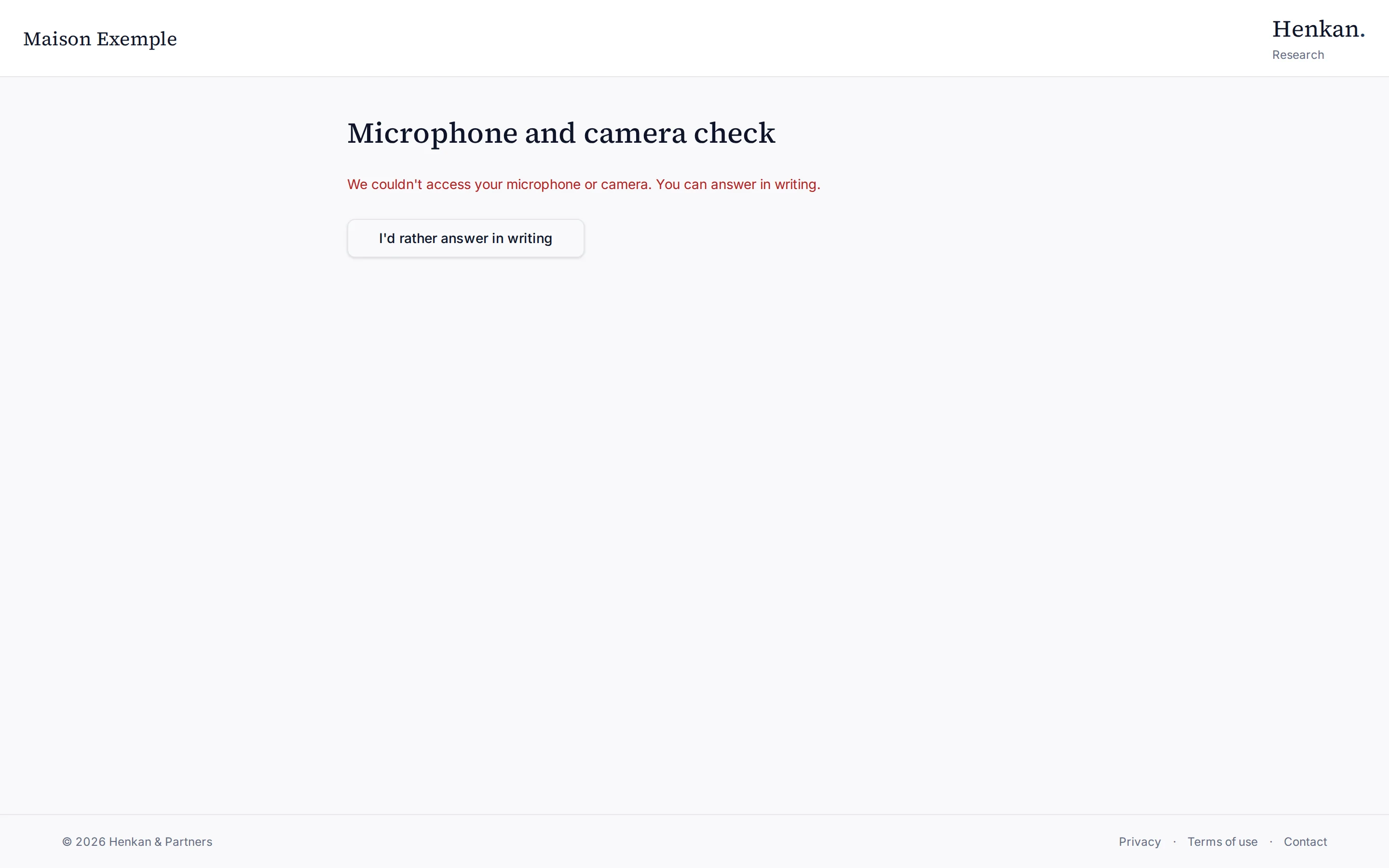
If the browser cannot access the microphone or camera, the page says so and offers to answer in writing.
4. The interview#
Voice and video#
The participant talks with the research assistant as in a call. The screen shows the assistant's status (speaking, listening, thinking), the participant's camera, a progress bar and the notice "You are talking with an AI."
| Control | What it does |
|---|---|
| Mute microphone / Unmute microphone | Pauses the microphone. |
| Show conversation / Hide conversation | Shows the live transcript. |
| Answer in writing | Switches to the written interview, keeping what was already said. |
| End | Ends the interview. |
If the live voice cannot connect or drops, the participant can retry, continue in Simplified voice mode (speak after the assistant replies; the answer is sent when they stop talking) or answer in writing. The interview never stops at a dead end.
Written#
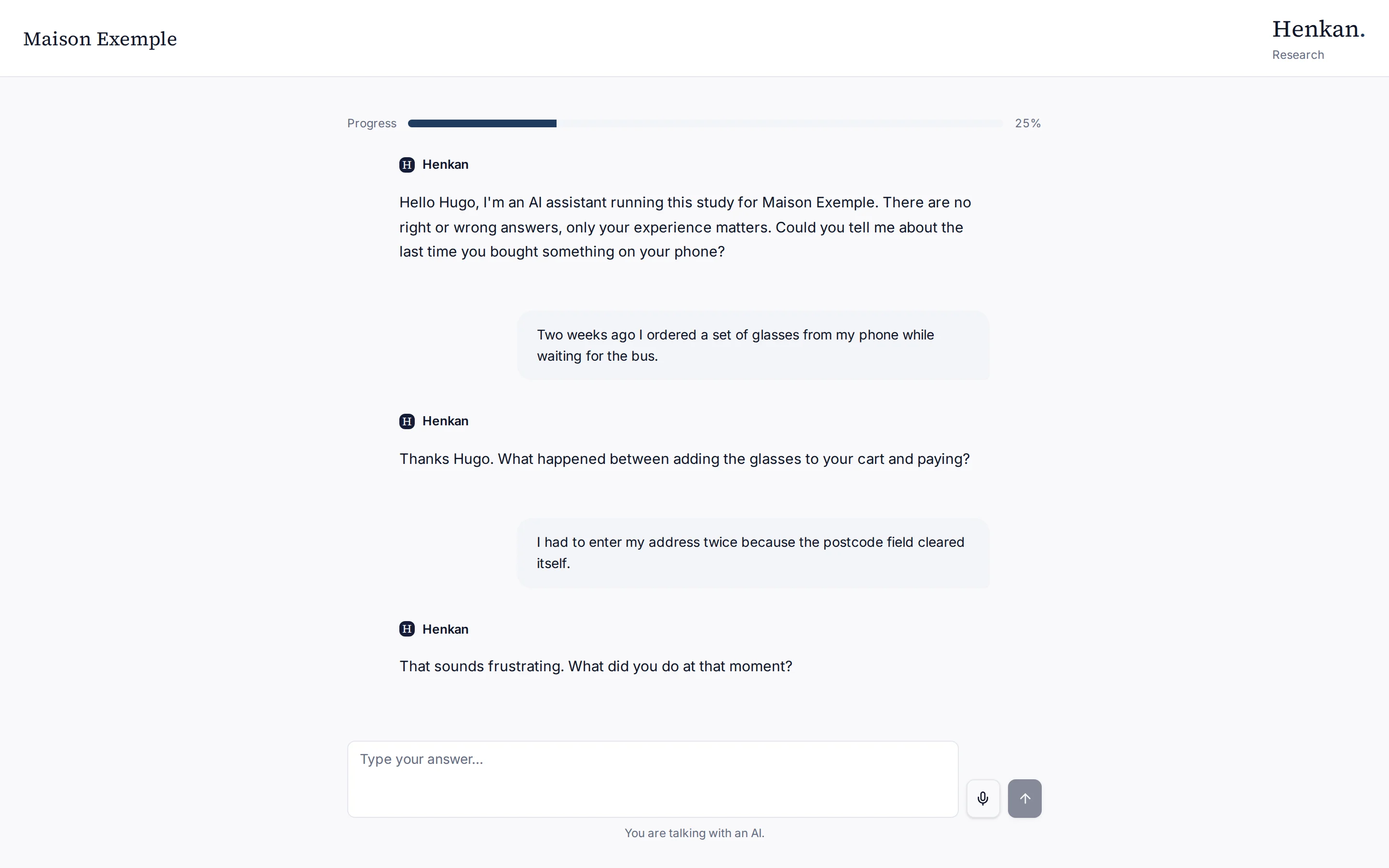
The participant types their answers; the notice "You are talking with an AI." stays under the box. The microphone button next to the box dictates an answer into the text field, if the browser allows it. Visuals appear in the conversation when the assistant shows them, with your instruction below.
5. Thank you#
When the assistant has covered the required topics, it sums up, asks whether anything was missed and thanks the participant. The page shows "Thank you!" and the participant can close it. Their interview appears in your Interviews and Results tabs.
Languages#
Interviews run in French or English, chosen by the participant on the welcome page. The AI speaks only that language and asks your opening questions in it, whatever language you wrote them in. Profile questions are shown exactly as you wrote them.