On-site recruitment shows a small invitation to the client's website visitors, for example on the cart page. Visitors who accept go straight to the interview, in a new tab or over the page.
Install the code#
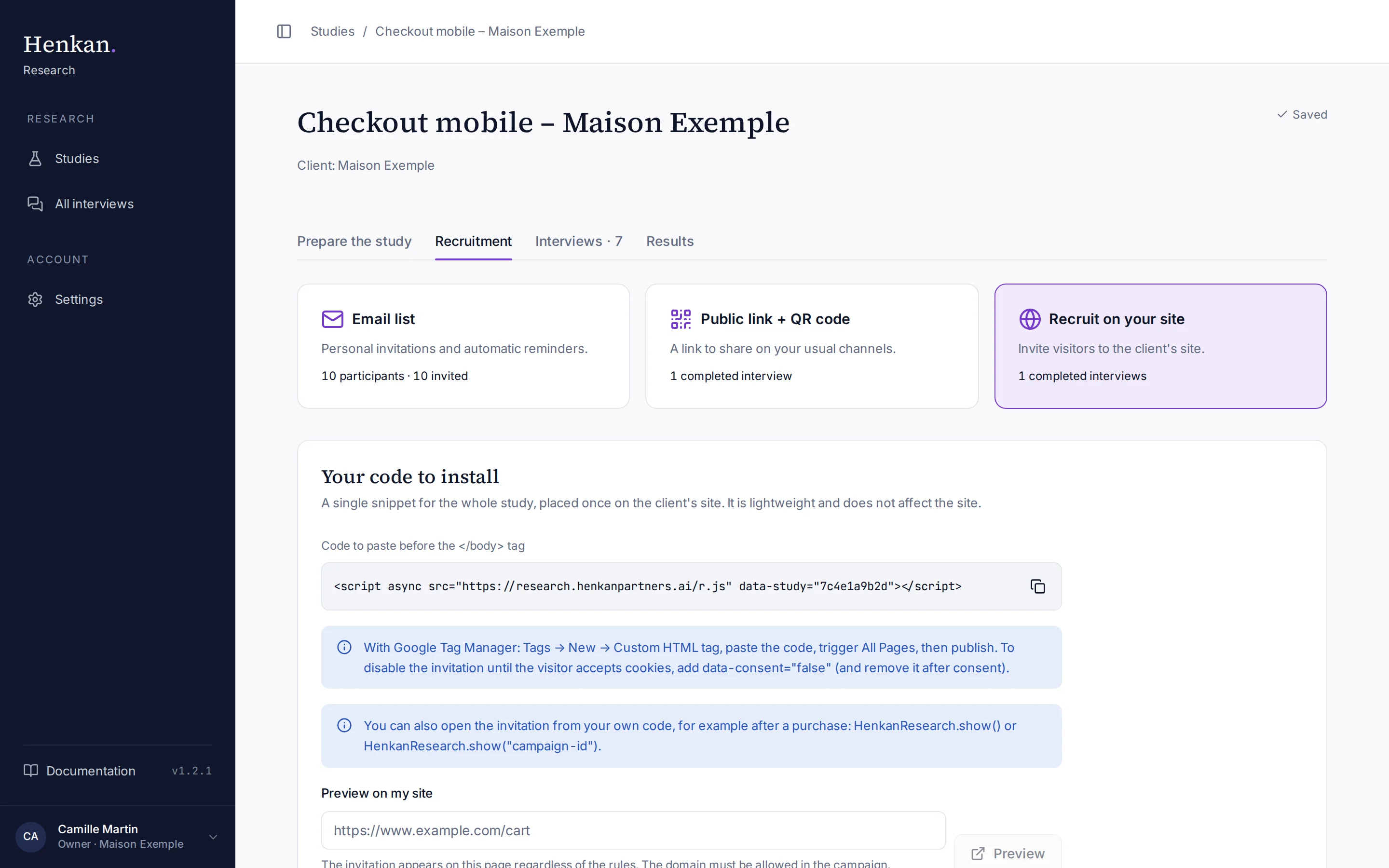
- Open the method In the Recruitment tab, select Recruit on your site.
- Copy the code Copy Code to paste before the </body> tag. It looks like this:
<script async src="https://research.henkanpartners.ai/r.js" data-study="7c4e1a9b2d"></script>
- Install it Paste it on every page of the site. With Google Tag Manager: Tags, New, Custom HTML tag, paste the code, trigger All Pages, then publish.
- Allow the domain In the campaign, list the site's domain under Allowed domains (see below). The code only works on these domains and their subdomains.
The script is lightweight, loads asynchronously and keeps its styles separate from the site's.
Cookie consent#
To keep the invitation off until the visitor accepts cookies, add data-consent="false" to the script tag and remove it after consent. The invitation is also never shown to visitors whose browser sends Do Not Track or Global Privacy Control.
Open the invitation from your own code#
Set a campaign's trigger to Only from your code (HenkanResearch.show), then call it from the site, for example after a purchase:
HenkanResearch.show();                 // first eligible campaign
HenkanResearch.show("campaign-id");    // a specific campaign
The campaign ID is shown at the bottom of each campaign, after ID for HenkanResearch.show.
Create a campaign#
A campaign sets the invitation's look and text, the pages and the moment it appears. A study can have several campaigns.
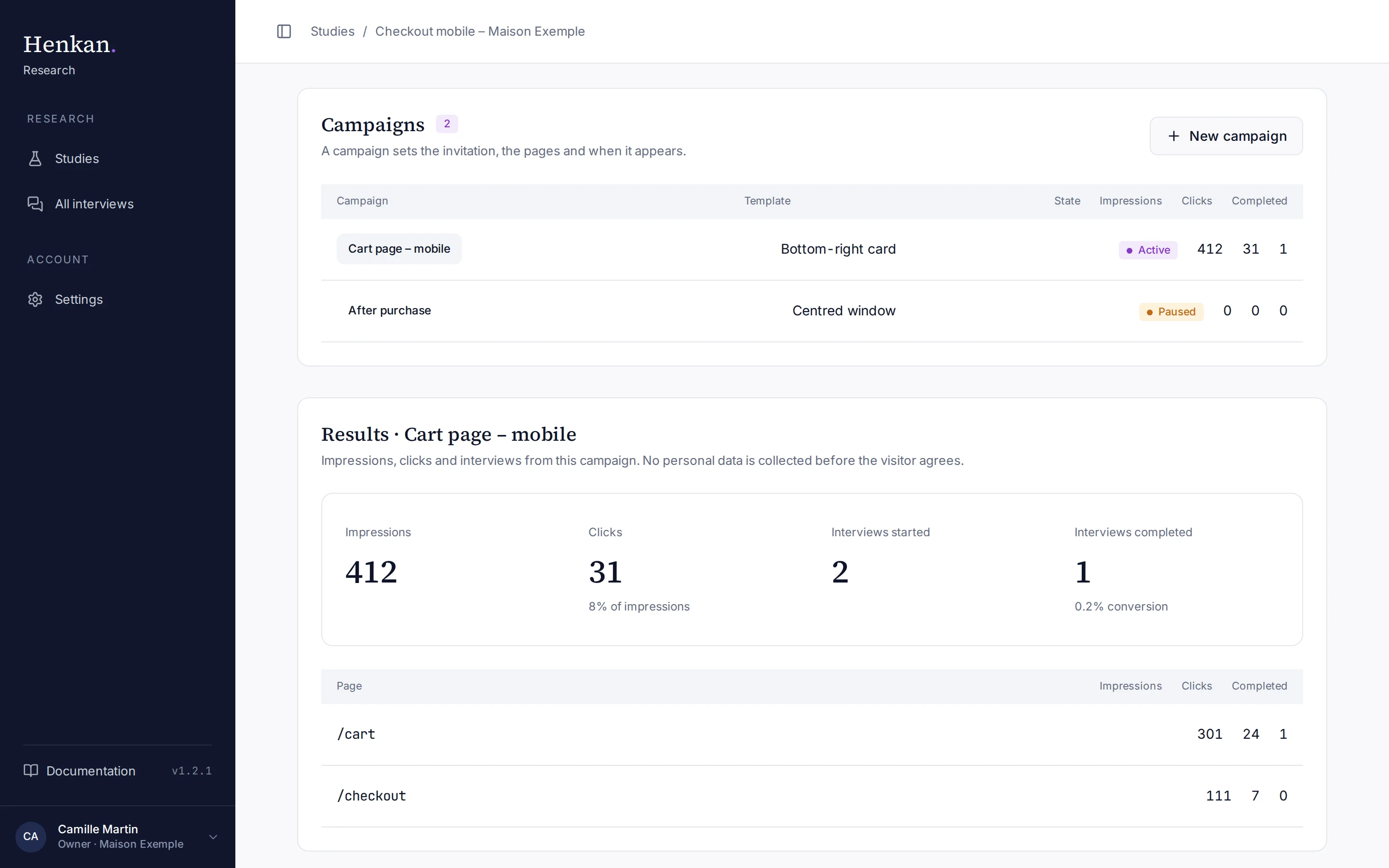
- Create Select New campaign (or Create a campaign). It starts active, with the domains of your first campaign. Creating a campaign completes the Choose who to interview step.
- Design the invitation Choose a template and write the text (see below).
- Set the rules Choose the pages, the trigger and the share of visitors.
- Check the preview The preview updates live, on desktop or mobile.
To pause a campaign, set State to Paused. Delete removes the campaign and its statistics.
Invitation#
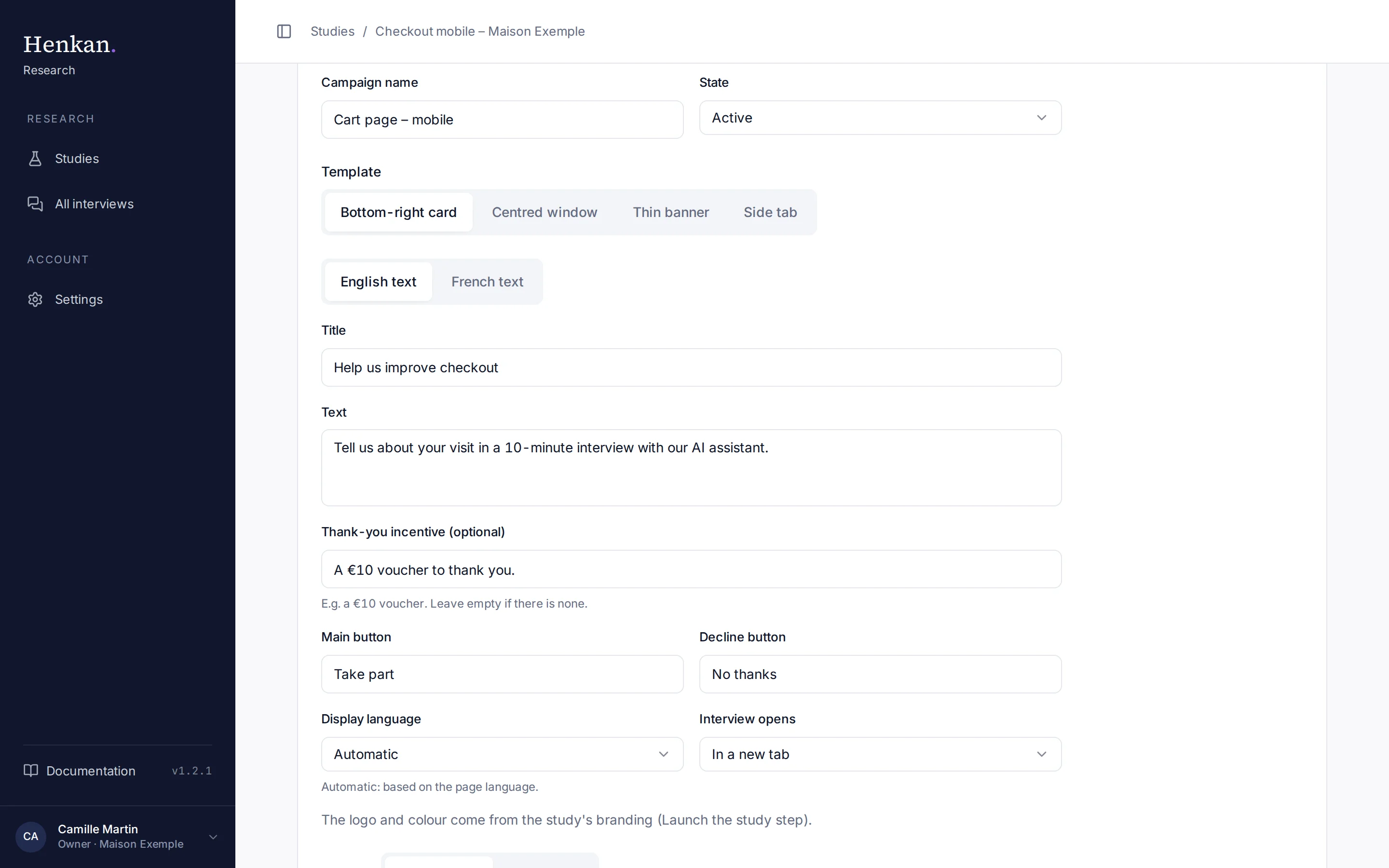
| Setting | Options |
|---|---|
| Template | Bottom-right card, Centred window, Thin banner (top or bottom of the page), Side tab |
| Title, Text, Main button, Decline button | Your wording, in English and in French |
| Thank-you incentive (optional) | For example "A €10 voucher to thank you." Leave empty if there is none. |
| Display language | Automatic (from the page language), Always English, Always French |
| Interview opens | In a new tab or Over the site page |
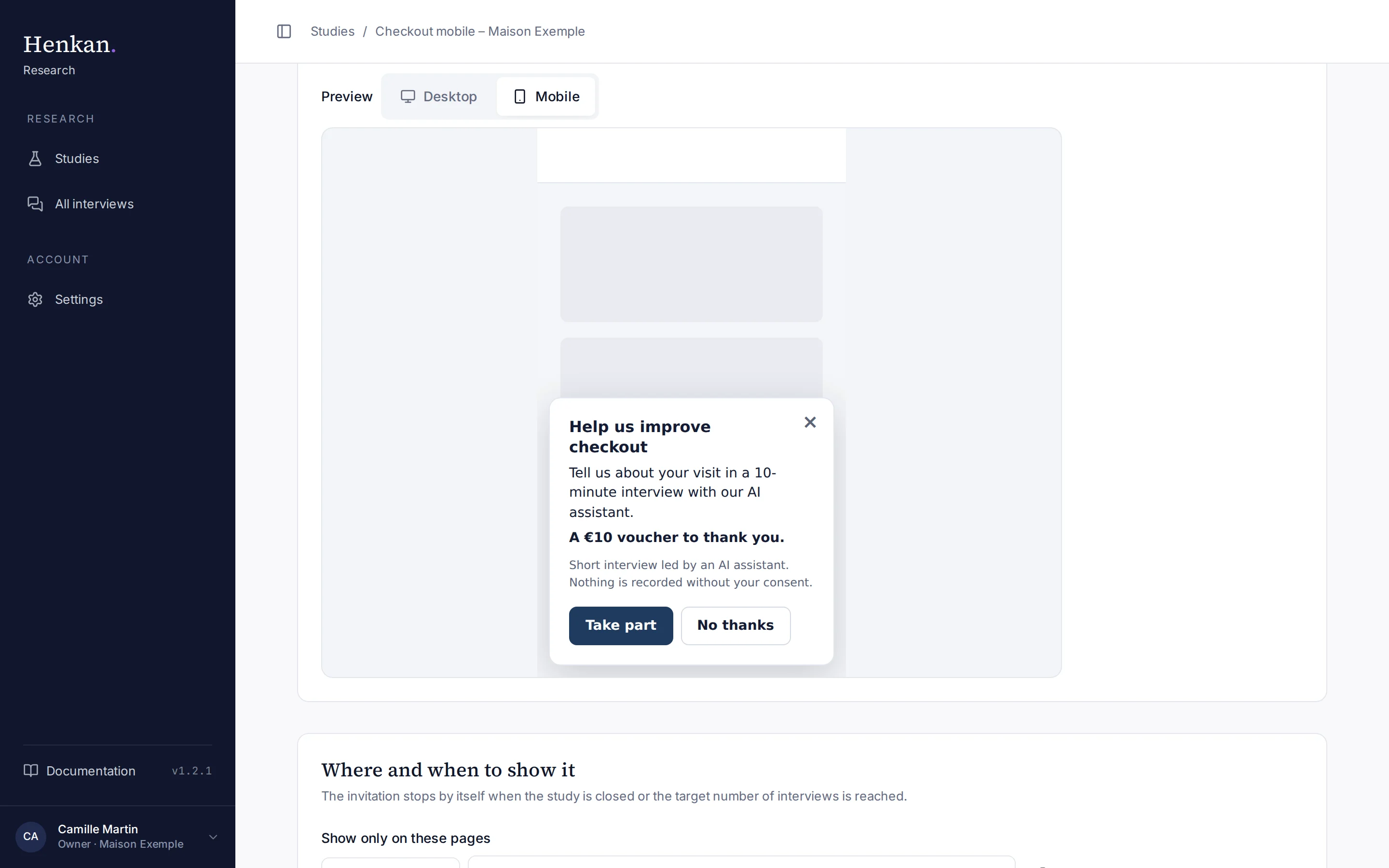
The invitation always adds a notice: "Short interview led by an AI assistant. Nothing is recorded without your consent." The logo and colour come from the study's branding on the Launch the study step.
Where and when to show it#
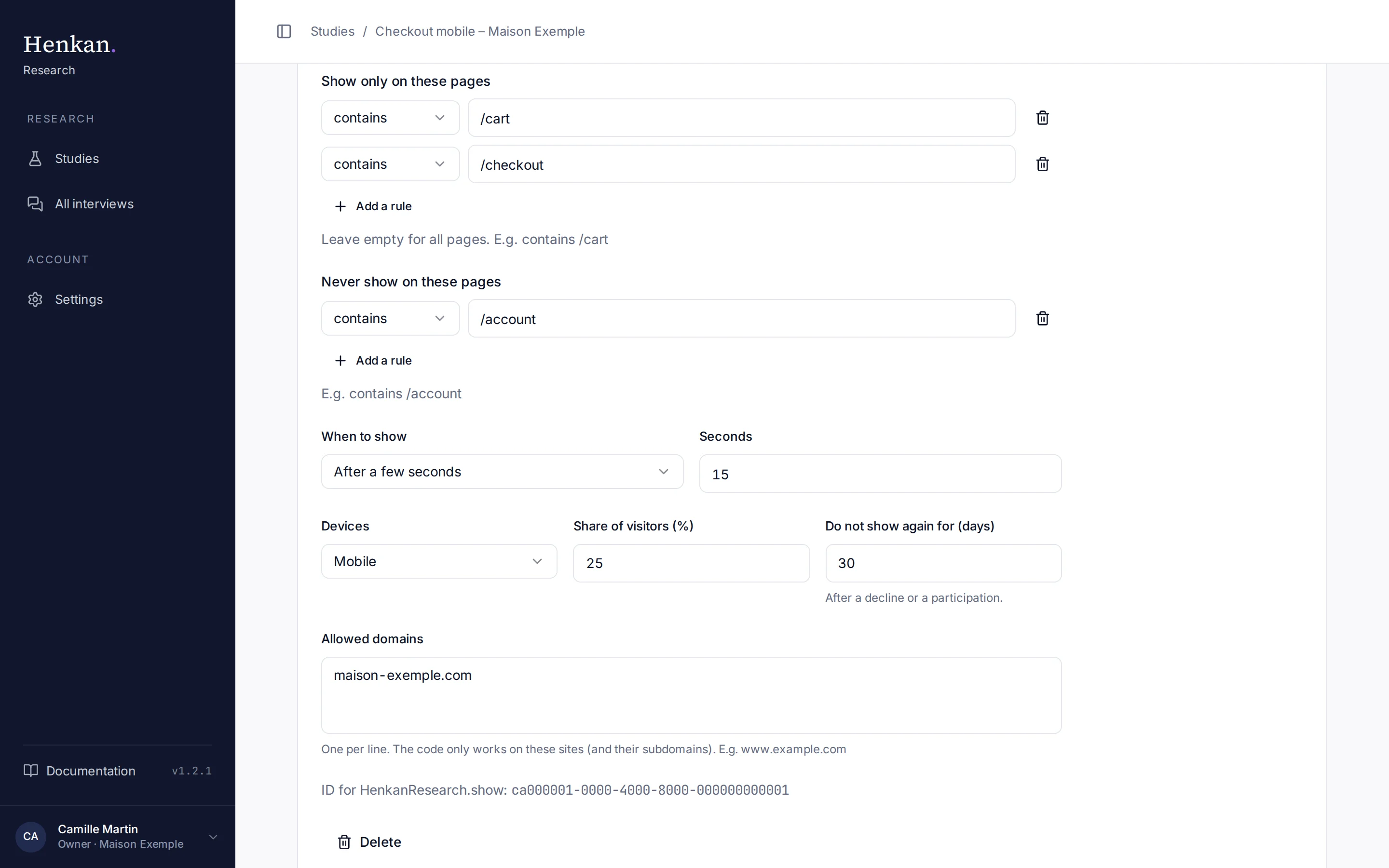
| Setting | Options | Default |
|---|---|---|
| Show only on these pages | Rules: contains, equals or regex, for example contains /cart. Empty means all pages. | All pages |
| Never show on these pages | Same rules, for example contains /account | None |
| When to show | After a few seconds, After scrolling a percentage of the page, When the visitor is about to leave (desktop), After several pages viewed, Only from your code (HenkanResearch.show) | After 10 seconds |
| Devices | All, Desktop, Mobile | All |
| Share of visitors (%) | 1 to 100 | 100 |
| Do not show again for (days) | After a decline or a participation | 30 |
| Allowed domains | One per line, for example www.example.com. Subdomains are included. | Required |
The invitation stops by itself when the study is closed or when the target number of interviews is reached.
Troubleshooting the snippet#
If the invitation does not appear, open the browser console on the site: the script explains why, for example domain not allowed, study not open, interview target reached, recently dismissed, or disabled by data-consent="false" or Do Not Track. See also Troubleshooting.