Every completed interview has a transcript and a five-line summary. Open an interview to read it in full, jump to moments in the recording and highlight passages.
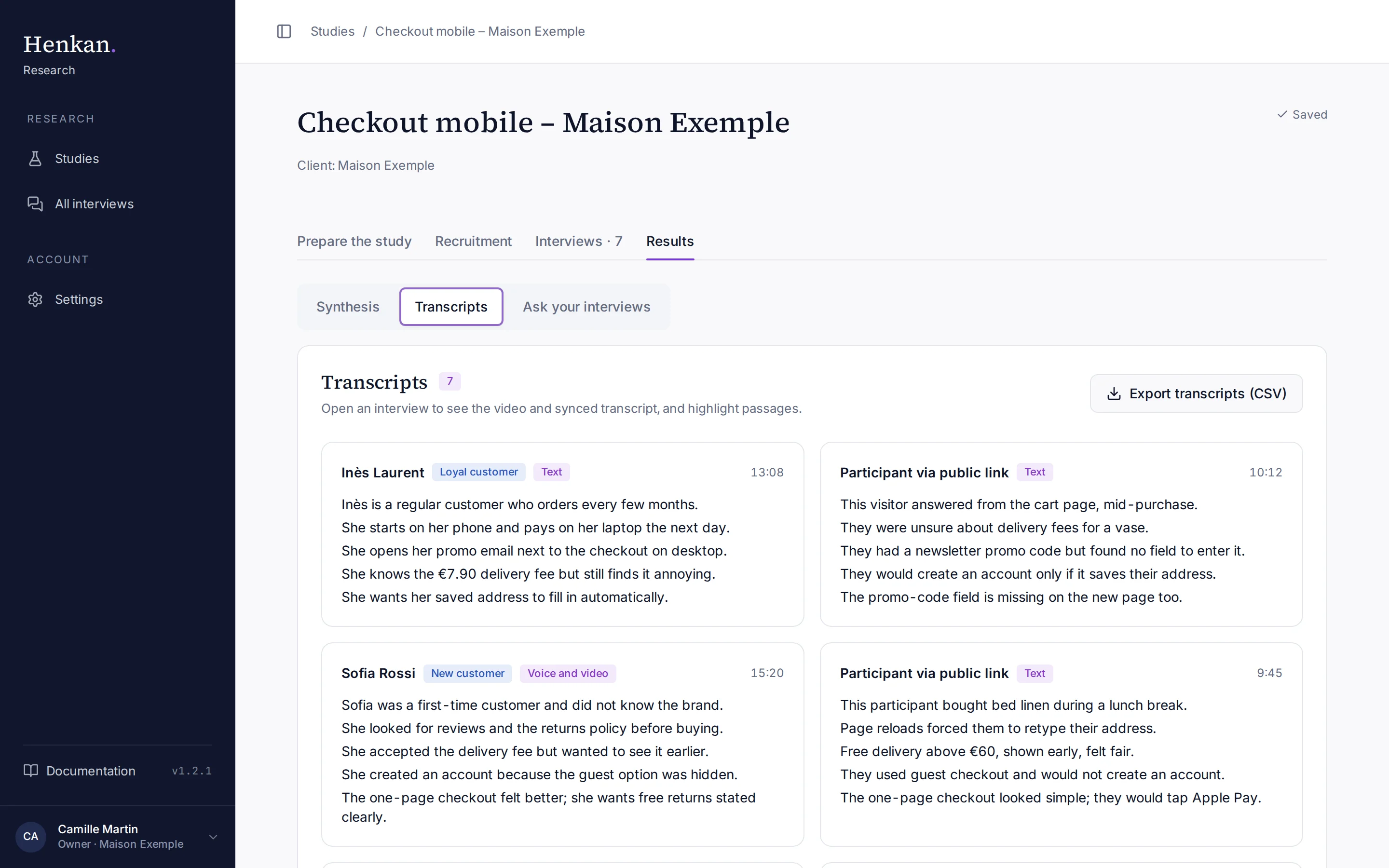
1
Export. Downloads all transcripts as a CSV file.
2
An interview. Select the name to open it. The card shows the profile, the mode, the duration and the summary.
Open an interview#
- Go to Transcripts In Results, select Transcripts.
- Open one Select the participant's name. Interviews from the public link or on-site invitations show Participant via public link.
You also reach an interview from a quote in the synthesis, from a citation in Ask your interviews, from All interviews in the sidebar, or from Your tests on the test step.
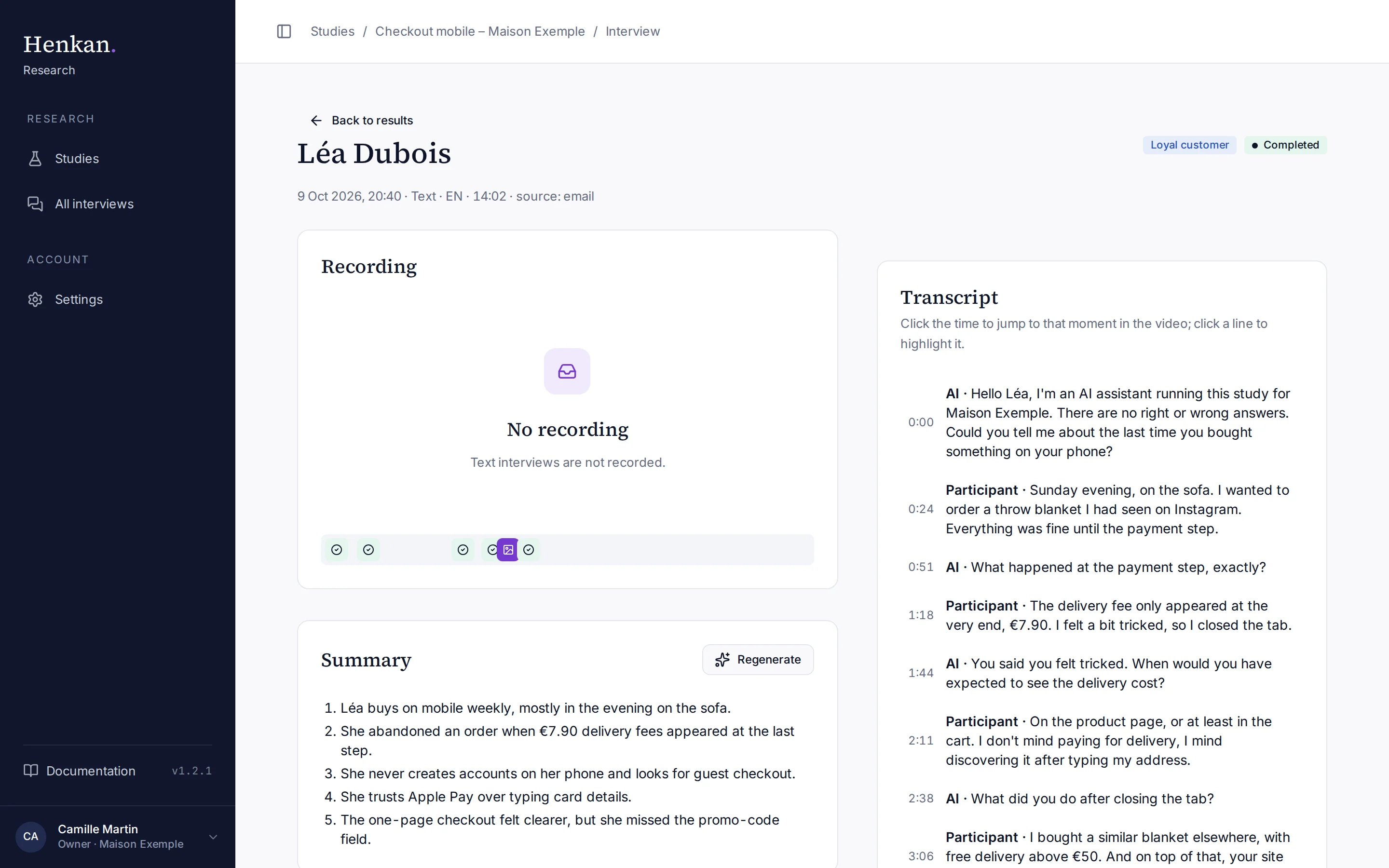
1
Interview details. Date, mode, language, duration and source.
2
Timeline. Markers for visuals shown and topics covered; select one to jump there.
3
Summary. Five lines written by the AI; topic coverage and highlights follow below.
4
Transcript. Select a time to jump to that moment in the recording.
| Part | What it shows |
|---|---|
| Recording | The video or audio, when the participant agreed to recording. Written interviews are not recorded. |
| Timeline | Below the recording: an image marker for each visual shown, a check marker for each topic covered. |
| Summary | Five short lines written by the AI when the interview ends. Regenerate writes it again. |
| Topic coverage | Each topic of the guide: in depth, covered or not covered. |
| Highlighted passages | Passages you highlighted, with their tag. Select a time to jump there. |
| Transcript | Every turn, with the time since the start, the speaker (AI or Participant) and the text. |
Highlight a passage#
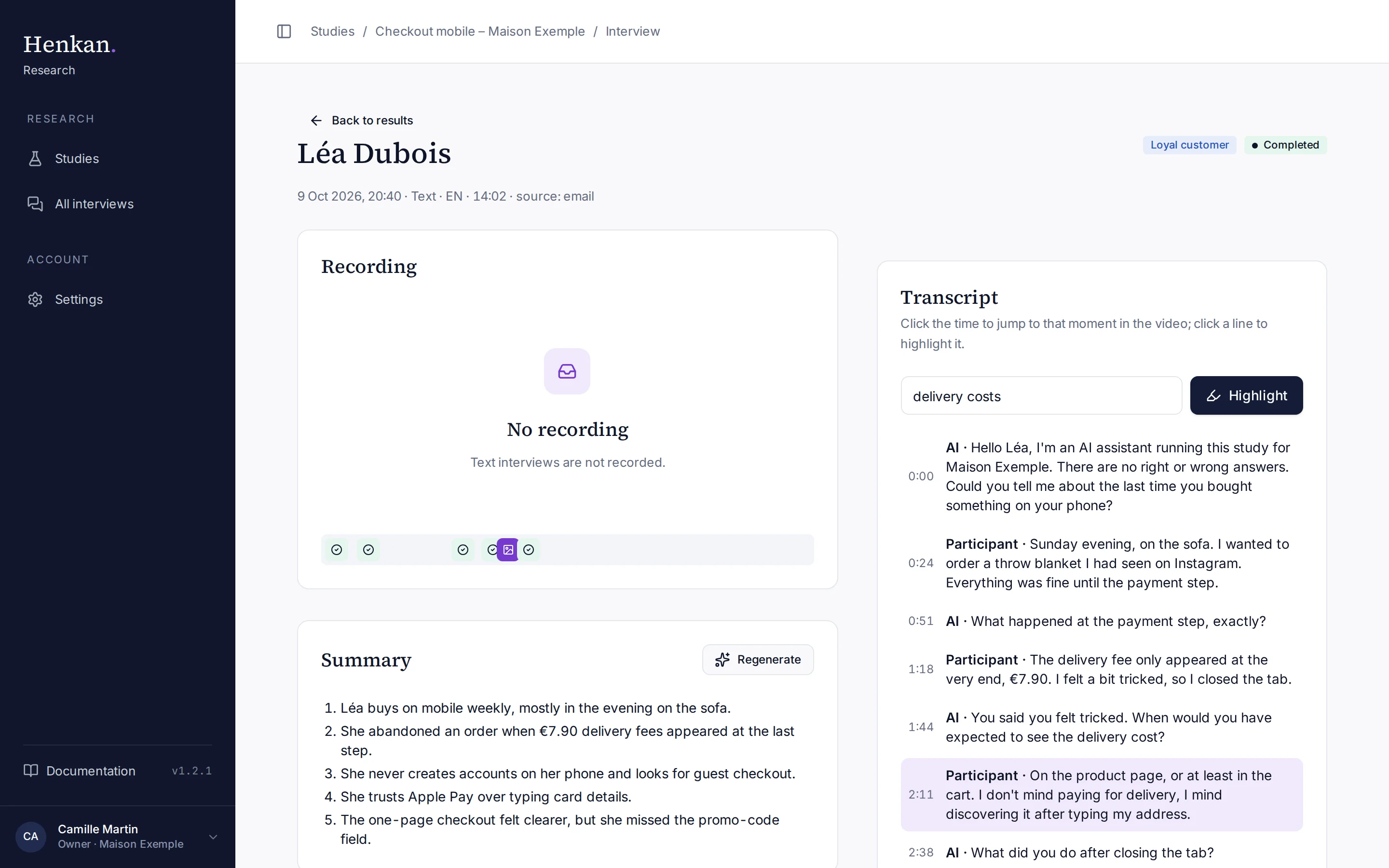
1
Selected line. Select a line to highlight it; select it again to cancel.
2
Tag. A short label for the passage.
3
Highlight. Saves the passage under Highlighted passages.
- Select a line In Transcript, select the participant's line.
- Tag it Type a tag, for example "delivery costs". Without a tag, the passage is tagged "insight".
- Save Select Highlight. The passage appears under Highlighted passages.
Export the transcripts#
In Transcripts, select Export transcripts (CSV). The file has one row per turn of every completed interview, excluding tests:
| Column | Content |
|---|---|
| session_id | The interview's identifier |
| respondent | The participant's name, or "Public link" |
| segment | The participant's profile |
| offset_seconds | Seconds since the start of the interview |
| speaker | ai or respondent |
| text | What was said |