The last step holds the study's settings and its status. Until the study is open, only your own tests are possible.
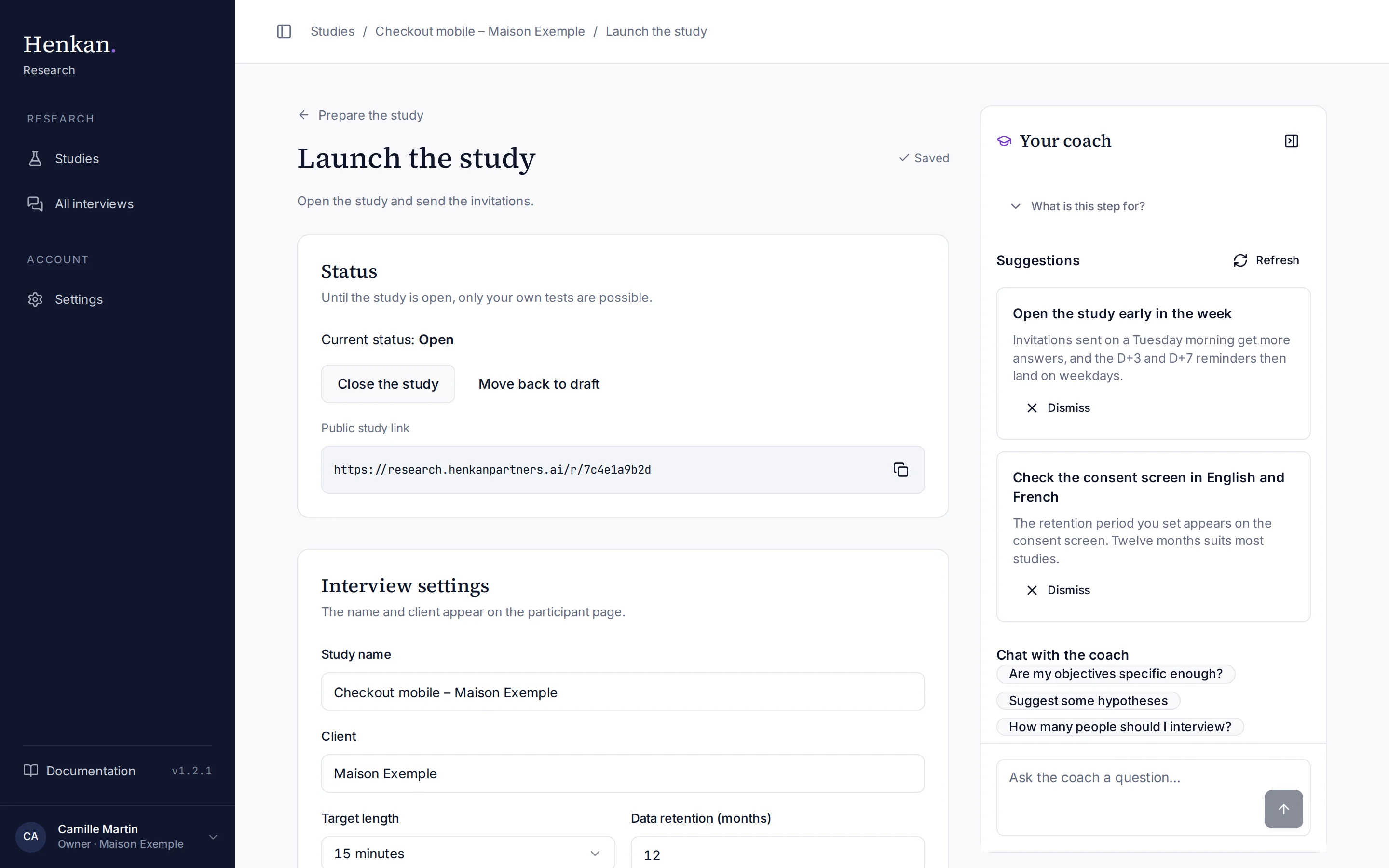
Open the study#
- Check what is missing If your need, your questions or who to interview (participants, public link or on-site campaign) are incomplete, a note says "Before opening, complete …". You can still open the study.
- Open Select Open the study. Participants can respond from now on.
- Invite Go to the Recruitment tab to send invitations or share the link. See Recruitment.
To stop accepting interviews, select Close the study. Move back to draft returns the study to draft; only tests are possible again.
Interview settings#
| Setting | Options | Default | Notes |
|---|---|---|---|
| Study name | Free text | From the framing | Shown on the participant page. |
| Client | Free text | From the framing | Shown in the welcome message and the consent screen. |
| Target length | 10, 15 or 20 minutes | 15 minutes | The AI adapts the number of follow-up questions to it. |
| Data retention (months) | 1 or more | 12 | Shown on the consent screen. Data is deleted after this period. See Security and privacy. |
| Response modes offered | Voice and video, Text | Both | At least one mode is required. |
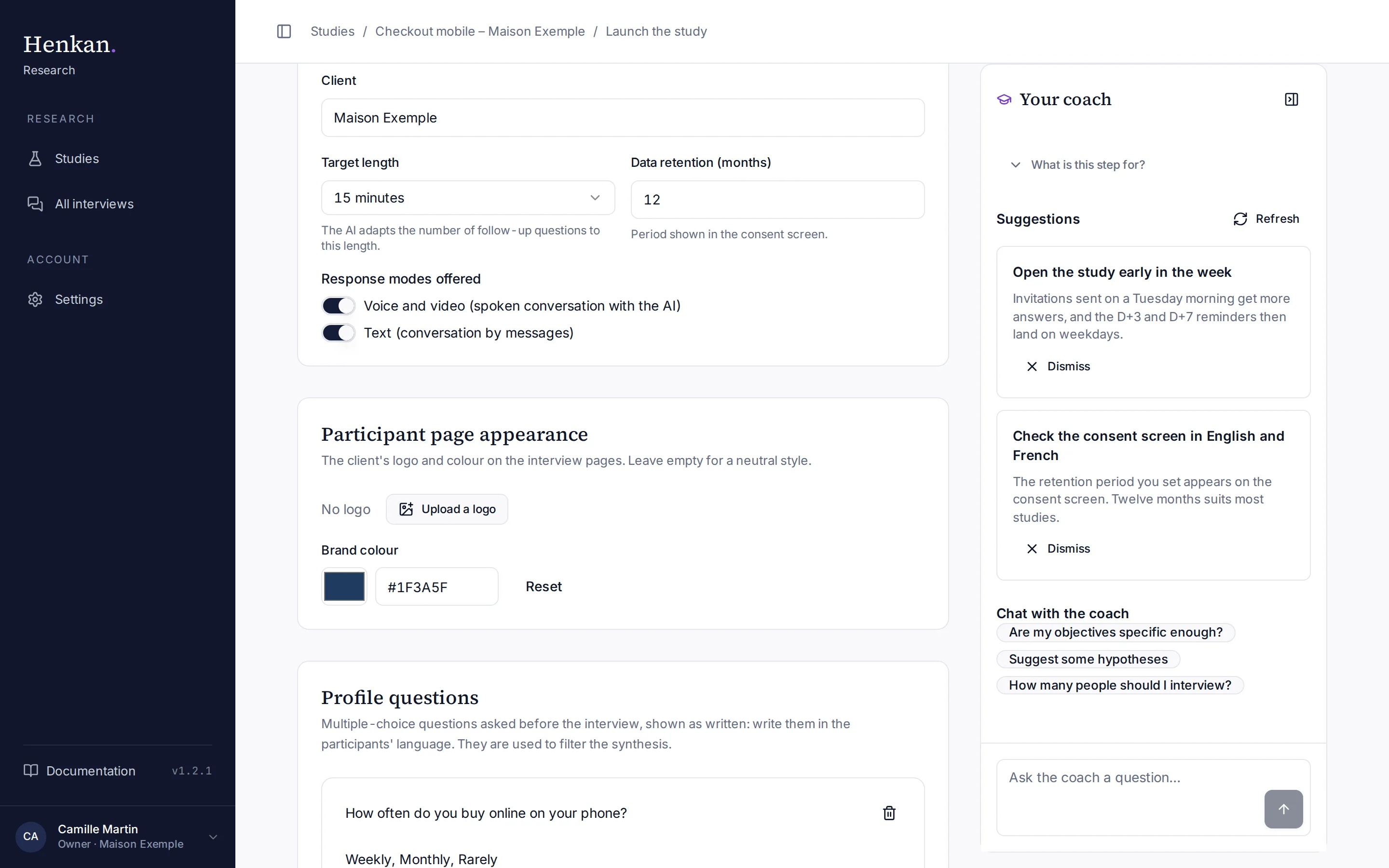
Participant page appearance#
Under Participant page appearance, select Upload a logo (PNG, SVG or JPG) and set a Brand colour with the picker or a code such as #1E3A8A. Leave both empty for a neutral style. Reset removes the colour and Remove removes the logo. The same branding is used by on-site invitations.
Profile questions#
Profile questions are short multiple-choice questions shown before the interview, for example "How often do you buy online on your phone?" with the answers Weekly, Monthly, Rarely.
- Add Select Add a question.
- Write the question Type it in the participants' language: it is shown exactly as written.
- List the answers Separate the possible answers with commas.
Participants can skip them. Their answers become filters for the synthesis.