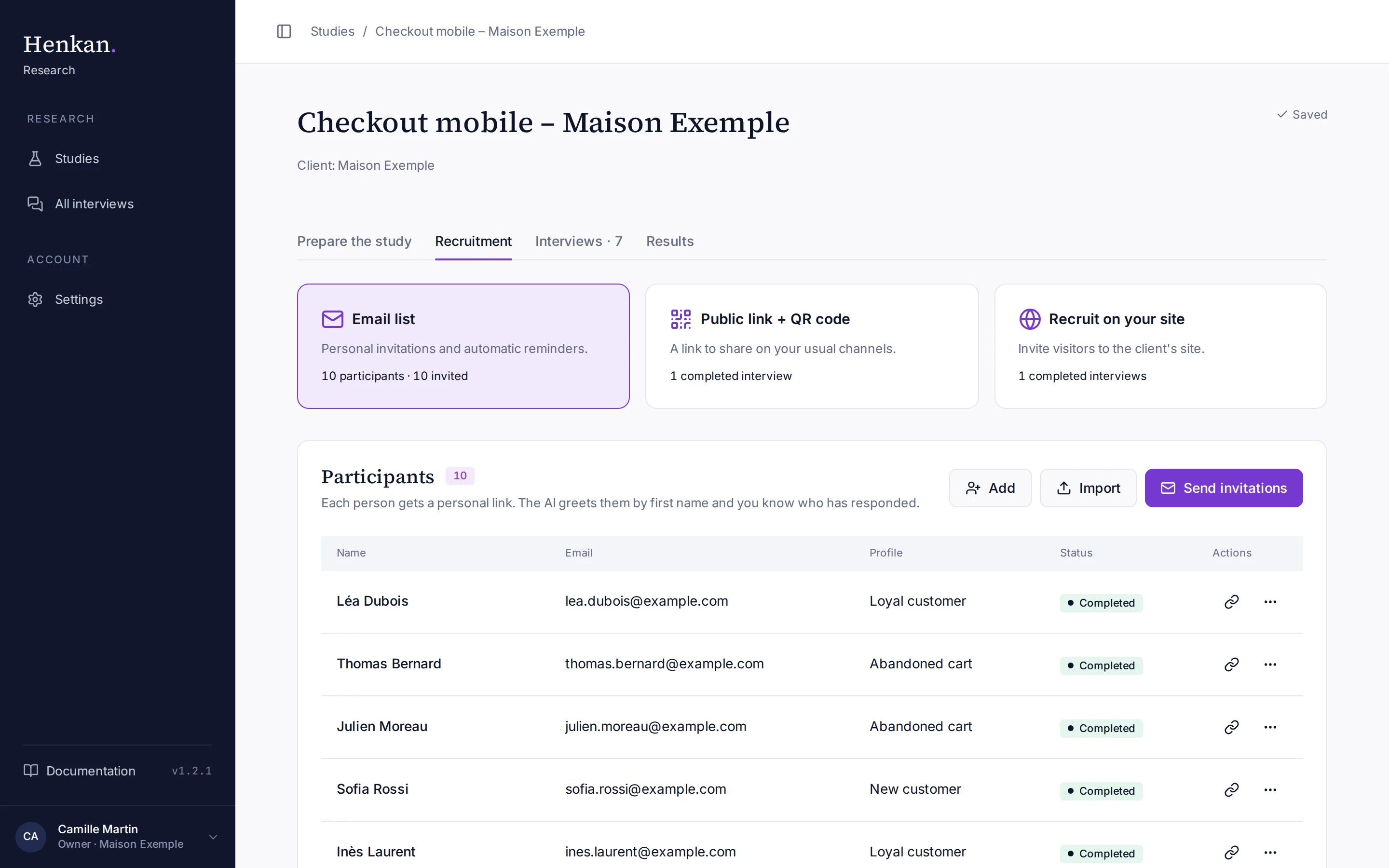
With an email list, each participant gets a personal link. The AI greets them by first name and you see who has responded, who is mid-interview and who needs a reminder.
Add participants#
- Add one person Select Add, fill in First name (required), Last name, Email, Phone and Profile, then Add participant.
- Or import a list Select Import, paste rows or choose a CSV file, then select Import N.
Import columns, in this order: first name, last name, email, phone, profile. Commas, semicolons and tabs all work as separators, and a header row starting with "first" (or "prénom") is skipped.
first_name,last_name,email,phone,profile
Léa,Dubois,lea.dubois@example.com,+33 6 10 20 30 40,Loyal customer
Thomas,Bernard,thomas.bernard@example.com,,Abandoned cart
The Profile column groups participants for quotas, follow-up and synthesis filters. Use a few consistent values.
Send invitations#
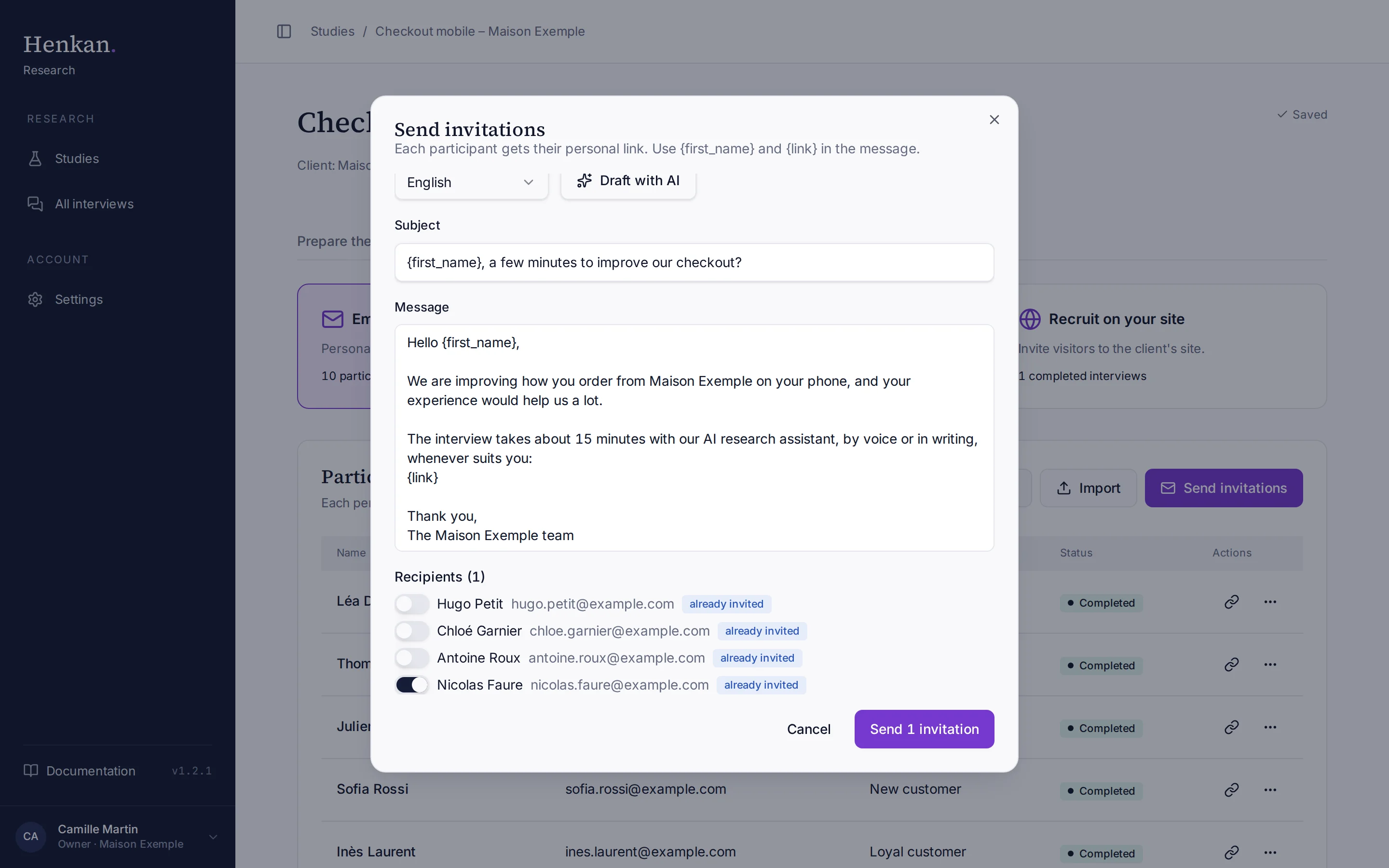
- Open the dialog Select Send invitations.
- Choose the language Email language is English or French.
- Write the message Write the Subject and Message, or select Draft with AI. Use the placeholders
{first_name}and{link}. If the message has no{link}, the link is added at the end. - Pick the recipients Everyone who has not received an invitation email yet is selected; turn people on or off as needed. People who already received an invitation show already invited. Adding or importing someone does not count as inviting them. Participants who completed or declined, or who have no email, are not listed.
- Send Select Send N invitations. The subject and message are saved with the study for next time.
Invitations and reminders are sent from a research.henkanpartners.ai address (sending domain notify.research.henkanpartners.ai).
Automatic reminders#
Reminders go out every morning to participants who received an invitation email and have not finished, a few days after that invitation. People you only added or imported get no reminders until you invite them.
| Setting | Default | Limits |
|---|---|---|
| Send reminders | On | |
| Reminder days | Day 3 and day 7 after the invitation | Up to 5 reminders, each between day 1 and day 59 |
- Select Add to add a reminder day, or the cross to remove one.
- Reminders follow the language of your invitation (English or French) and use the same personal link.
- The daily job never sends a participant two emails on the same day. Participants who completed or declined get no reminders, and closed studies send none.
- The section shows how many reminders were sent, and how many sends are waiting to be retried.
Manage participants#
- Copy a link The link icon copies the participant's personal link.
- Export links (CSV) Downloads every participant with their status and personal link, for example to send invitations from the client's CRM.
- Delete a participant Open the actions menu (three dots) and select Delete participant. Their interviews, recordings and emails are deleted too.
| Status | Meaning |
|---|---|
| Invited | Added, link not opened yet |
| Link opened | Opened their link |
| Started | Started the interview |
| Completed | Finished the interview |
| Declined | Will not take part. Gets no invitations or reminders |